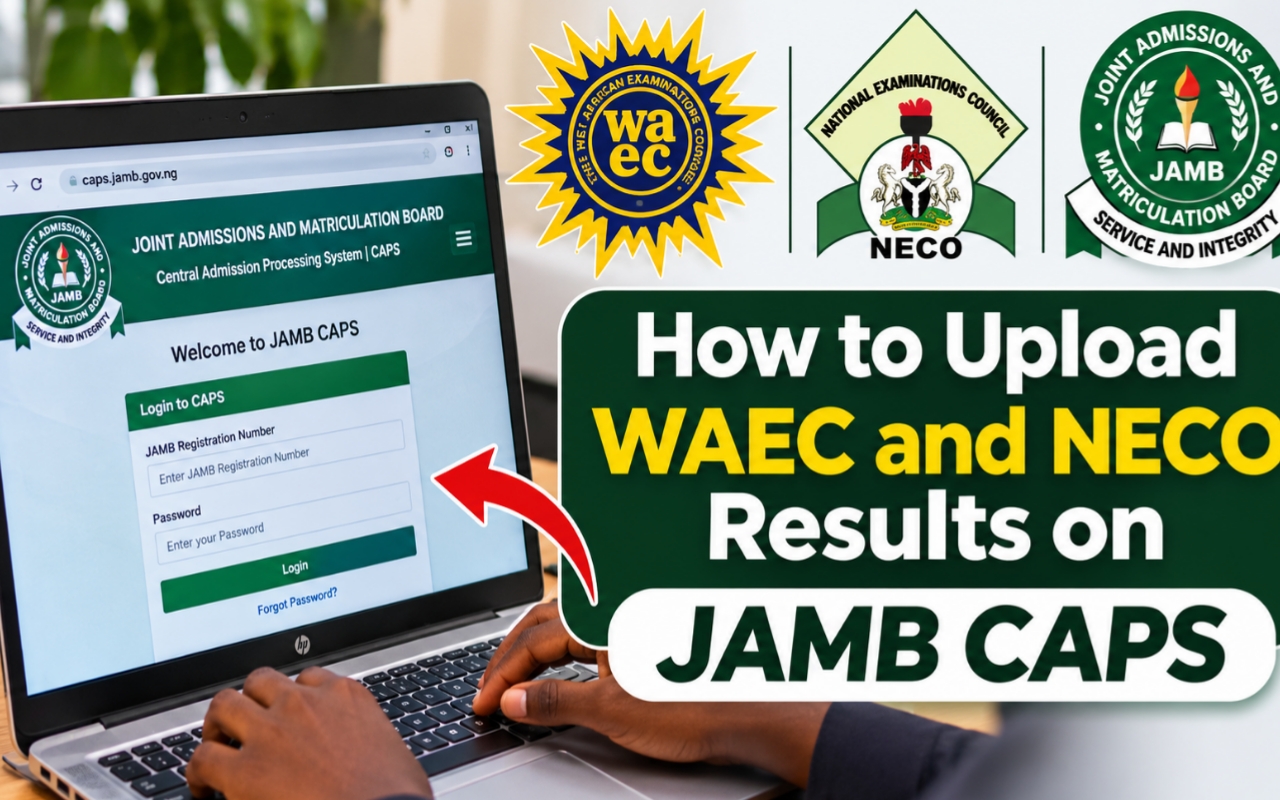
What is the correct way to upload WAEC and NECO results on JAMB CAPS?
You upload them in two stages. First you verify the result with the exam body, then you apply the verified result to your JAMB profile.
Since 24 August 2026, JAMB allows candidates to do the whole thing from home. You start on the National Results Verification Platform, pay the verification charge, and get a code. You then send VERIFY plus that code to 55019 or 66019.
The old route still exists. You can walk into an accredited JAMB CBT centre with your result slip, and the staff will upload it for you. Many candidates still prefer it, especially when something goes wrong at home.
Whatever route you choose, confirm the upload afterwards. A result on your phone is not on your JAMB profile, and admission will not wait.
What changed about O’Level upload in 2026?
Before August 2026, the job was manual. A centre official typed your subjects and grades into the portal, and mistakes happened.
On 24 August 2026, JAMB announced direct verification with the examination bodies, beginning with WAEC. The Board said the new arrangement would cut long queues, reduce manual entry errors and block fake results.
The statement came from Dr Fabian Benjamin, JAMB’s Acting Director of Public Affairs and Protocol. He said candidates can now upload from home while JAMB verifies with the issuing body.
That is the part to understand. Your result is checked against WAEC’s own record before it lands on your profile. So the grades you type must match what WAEC has, or the system will not accept them.
What do you need before you start the upload?
Get these ready on the same device you plan to use.
1. Your NIN, because the verification platform asks for it first.
2. Your WAEC examination number.
3. The examination series, for example the May/June diet.
4. The examination year.
5. An email address you can open immediately.
6. Your phone number, ideally the one on your JAMB profile.
7. A debit card or a bank transfer option for the verification charge.
8. Airtime on the phone you will use to send the SMS.
Keep your JAMB profile details nearby too. If the name on your WAEC result and the name on your JAMB profile are different, fix that before you start.
How do you verify your result and get the code?
This is the first stage, and it happens outside CAPS.
1. Open buyresultsverificationcode.ng in your browser. The page loads as the National Results Verification Platform.
2. Enter your NIN and click Verify NIN.
3. Choose the number of sittings you want to use. One sitting if you are using a single WAEC result.
4. Select the examination body. WAEC is the one confirmed so far.
5. Enter your email address and phone number, then click Pay Now.
6. Complete the payment on the gateway with your card or a transfer.
7. Enter your examination number, series and year.
8. Verify the result and collect your Verification Code.
Write the code down as soon as it appears. Treat it like a PIN, because anybody who has it can apply a result to a profile.
The platform sits outside the jamb.gov.ng domain, so type the address yourself. Do not click a link someone sent you on WhatsApp.
How do you upload the result after getting the code?
Now you move to the SMS stage.
1. Open your messaging app on the phone tied to your JAMB profile.
2. Type VERIFY, press space, then your Verification Code.
3. Send it to 55019 or 66019.
4. Wait for the confirmation message. It usually comes within minutes.
That message means the result has been uploaded. Check it carefully, because some messages confirm the verification only, not the profile update.
If you used two sittings, JAMB sends you to the e-Facility portal instead. You will be asked to log in, open 2026 UTME O’Level Upload, and apply the results yourself. That is where you choose the exact subjects.
Keep the message and screenshot it. It is your evidence if the portal later disagrees.
How do you upload NECO instead of WAEC?
Here you need to be careful, because most articles mix the two together and leave candidates stranded.
JAMB’s 24 August announcement named WAEC as the first examination body on the direct verification platform. It said others would follow, but it did not give a date for NECO or NABTEB.
So the honest position is this. Open the verification platform and look at the list of exam bodies on the page. If NECO appears, use it and follow the same steps. If it does not, the home route is not open for your NECO result yet.
Your fallback is the CBT centre. Take your NECO statement of result and your JAMB registration slip to an accredited centre. Watch the screen and confirm the subjects and grades before the official submits.
NECO’s own record is what JAMB checks against, so the details must match your NECO result exactly. Do not let a centre official guess a grade.
Can you upload two sittings in one entry?
Yes, and JAMB built the process for it.
On the verification platform, select two sittings instead of one. You will pay for both and supply the examination details for each, whether that is two WAEC results or a WAEC and a NECO.
After verification, you move to the e-Facility dashboard. Click 2026 UTME O’Level Upload, enter your code, and both results appear on screen. You then tick the subjects you want JAMB to use.
Two rules apply here. You must select at least five subjects and no more than nine. And you cannot select the same subject twice, even if you sat it in both years.
That rule trips people up. If English Language appears in both sittings, pick the better grade.
Which subjects should you select from the list?
Select the subjects that matter for your course, not every subject on your result.
Universities want five credits, including English Language and Mathematics, and they want the subjects relevant to the programme. A Nursing candidate should not fill the nine slots with Government, Literature and CRS just because those are the best grades.
A safe pattern for most courses is English Language, Mathematics, and three subjects from the science, arts or social science group that matches your programme. Add two or three extras if you have them, because some schools score candidates on more than five.
If your course requirement is unclear, open the JAMB brochure for that programme, or check the admission requirements page on the school’s website. Guessing here can cost you an offer even after a clean upload.
How do you confirm that the upload worked?
Log back into the JAMB e-Facility portal at efacility.jamb.gov.ng and follow this route.
1. Enter your registration number or email and your password.
2. Click Check Admission Status.
3. Click Access my CAPS.
4. Open My O’Level Result.
You should see your examination type, your exam number, your subjects and your grades. If you see them, the upload landed.
If the section shows AR, which means Awaiting Result, the upload did not go through. That is not a small problem. JAMB has said repeatedly that a candidate whose result is not uploaded cannot be recommended for admission.
Do not rely on the SMS alone. The profile page is the record that institutions read.
What goes wrong most often with O’Level uploads?
1. Paying an agent to “verify” a result the platform verifies for free.
2. Entering a different examination year from the one on the certificate.
3. Selecting fewer than five subjects and wondering why the page will not submit.
4. Picking the same subject twice across two sittings.
5. Using a phone number that is not on the JAMB profile, so the SMS stage fails.
6. Uploading a result that appears fine while the name on it is different from the JAMB name.
7. Leaving the profile at Awaiting Result until admission lists are already out.
The last one hurts most. Schools cannot recommend you on CAPS with an incomplete O’Level record, whatever your UTME score.