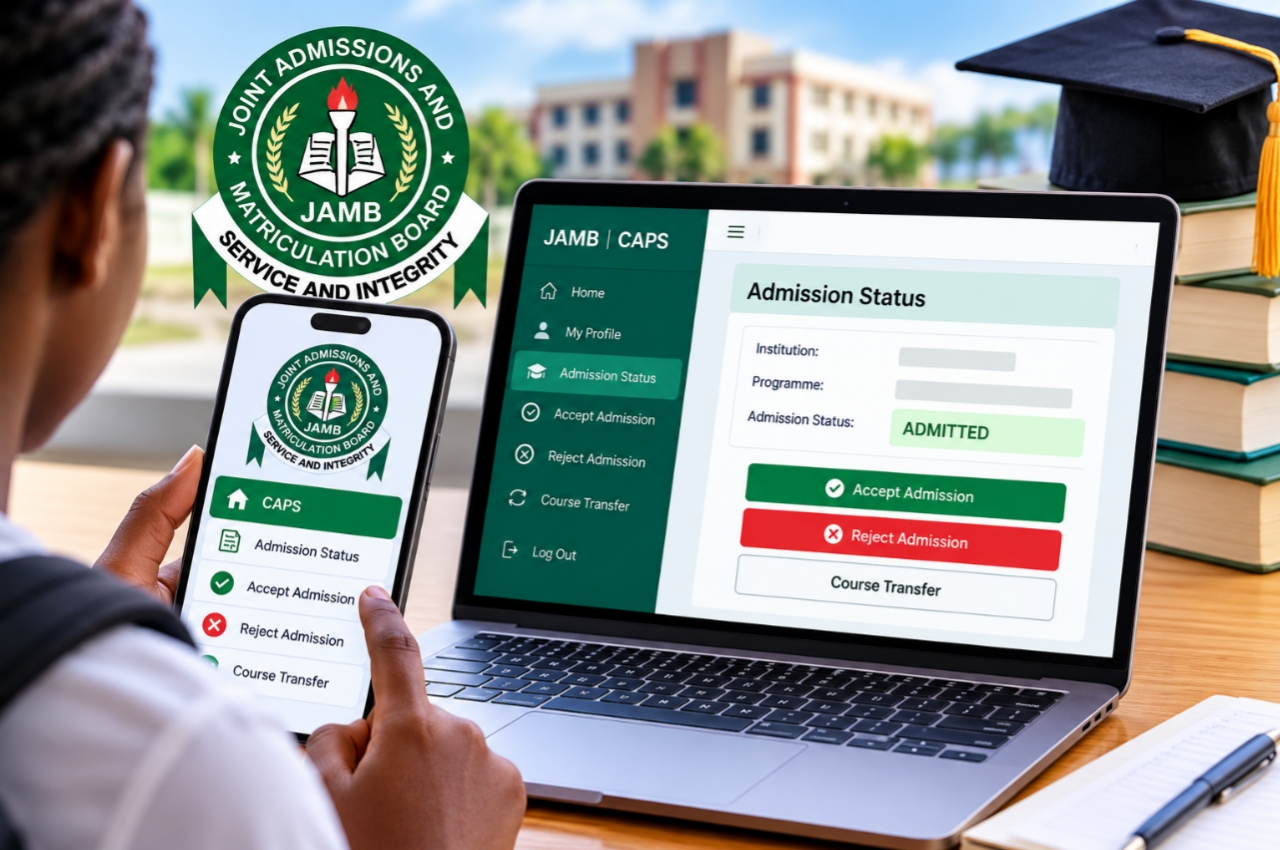
To access CAPS, you will use the JAMB e-Facility portal. To check for JAMB admission status, login to your JAMB profile with your email and password, click Check Admission Status, select the exam year (2026), enter your JAMB registration number, and Access My CAPS. When using a phone, you’ll need to switch Chrome to Desktop site first, otherwise the side bar with the Admission Status and Transfer Approval section will not show up, and the page will appear empty. That single setting has cost real candidates real admissions.
The first thing you need to know is that JAMB has fixed 30 November 2026 as the deadline for candidates who received admission offers that are yet to expire in the 2021-2025 admission exercises. After that date, any of those older offers left unaccepted and unrejected will automatically change to ‘Not Admitted’ on JAMB’s records and any subsequent request for their change will incur the appropriate penalty fee. Check older years of UTME registration (not just 2026).
How to check your admission status on JAMB CAPS (2026/2027)
On a computer
1. Go to the official JAMB portal at portal.jamb.gov.ng or efacility.jamb.gov.ng and log in with your registered email address and password.
2. Select Check Admission Status.
3. Choose the exam year as 2026.
4. Enter your JAMB registration number and click Access My CAPS.
5. Open Admission Status. Your photograph, the institution and the programme appear where an offer exists.
6. Where the offer has been approved, the Accept and Reject options become available. If it hasn’t – those options remain off because it’s a system state and not a fault with your account.
On a phone
1. Open Chrome and visit the e-Facility login page.
2. Sign in with your registered email and password.
3. Tap Check Admission Status, choose 2026, enter your registration number, and tap Access My CAPS.
4. If only a welcome page loads, tap the three dots at the top right of Chrome and tick Desktop site. The page refreshes and the sidebar shows up.
5. Open Admission Status, then Transfer Approval if that item is listed.
As you are in CAPS, you should also check the following two Tabs; my O’Level to ensure that your WAEC or NECO result is uploaded and connected to your profile, and the school/institution details on the offer itself, in order to detect if you have a wrong programme before you accept it.
JAMB CAPS is the only place your admission legally exists. Everything else, a school’s notice board, an SMS from an admission officer, a screenshot circulating in a WhatsApp group, is a recommendation until the offer appears on CAPS and you accept it there.
For the 2026/2027 session, the system shows three main states:
1. APPROVED. “Congratulations, your admission has been approved by JAMB.” You have an offer. Accept or reject it now.
2. PROPOSED. “You have been proposed for admission by your institution.” Your school selected you; JAMB is still processing. Wait and keep checking.
3. NOT ADMITTED. No offer yet. Because schools upload in batches, this is a status, not a verdict, until your institution’s list is fully out.
What each CAPS status message means
1. APPROVED / “Congratulations, your admission has been approved by JAMB” — JAMB has approved your admission into the institution. Accept or reject the offer, then print your admission letter.
2. PROPOSED / “You have been proposed for admission by your institution” — the institution has selected you for admission consideration, and the application is awaiting JAMB’s review and approval. There is no final offer yet, so keep checking until the status updates.
3. NOT ADMITTED — no admission offer has been made to you at this point. This does not necessarily mean your institution has finished considering you; it may still be processing batches or uploading lists.
4. Admission in progress — your school has transmitted details and processing is ongoing. It usually moves within days, not weeks.
5. Awaiting Institution Action — the delay is on your school’s side, not JAMB’s. Follow up with the admission office.
6. Transfer Approval / transfer pending — the institution wants to admit you into a different programme from the one you chose. Nothing further happens until you respond.
7. Admission Accepted — you have accepted. Proceed to the printed letter and school clearance.
8. Rejected — you declined the offer, or an unanswered offer was returned to “Not Admitted” under the acceptance deadlines below.
What to look at before you accept
Read the offer as a document, not as good news. Check five lines:
1. Institution — is it the school you applied to or changed to, and not a similar-named one?
2. Programme — is the course the one you intended, and at the level you applied for (100 level versus 200 level for Direct Entry)?
3. Entry category — UTME, Direct Entry, or another route.
4. Your personal details — surname, first names, date of birth. A mismatch with your WAEC/NECO card will be questioned at clearance.
5. Whether a Transfer Approval is pending — if the school proposed a course change, that must be answered first, or the main acceptance will not proceed cleanly.
Acceptance is treated as final. Choose deliberately: if you were holding out for a different school, weigh that gamble against losing a place you already have.
How to accept or reject admission on JAMB CAPS
Method 1 — on the portal
Log in to the e-Facility portal, open Admission Status, confirm the institution and programme displayed, then select Accept Admission or Reject Admission and confirm at the prompt. Once acceptance is recorded, the message changes to “Congratulations, you have ACCEPTED your admission,” and you can proceed to print your admission letter.
Method 2 — by SMS
You can respond from the mobile number registered on your JAMB profile, sending to 55019 or 66019 (both short codes work; use one). Requirements: an offer already visible on CAPS, the exact registered SIM, and enough airtime for the SMS charge.
Two message formats are in circulation, and schools print different instructions, so confirm the wording shown on your own CAPS dashboard before sending:
1. Registration number, space, keyword — for example: 20261234567AB ACCEPT
2. Keyword, space, registration number — for example: ACCEPT 20261234567AB
To decline, replace ACCEPT with REJECT. After sending, wait for JAMB’s reply and then return to the portal to confirm your status changed. Do not treat an SMS sent without portal confirmation as proof — the record on CAPS is the proof.
Method 3 — biometrically at an accredited CBT centre or JAMB office
JAMB has stated that acceptance and rejection of admissions can be done through the 55019 or 66019 channels or by using the candidate’s biometrics at any accredited CBT centre or JAMB office. This is the route for you if you no longer have the SIM you registered with, if the number is dead, or if the SMS keeps failing. Carry your registration number, a printout or screenshot of your ID details and the old SIM if you still have it.
Also Read JAMB Cut Off Mark 2026
How to accept or reject a course transfer on CAPS
An institution can offer to accept you into a programme that is different than the programme you chose. That decision must be made by the Transfer Approval, not the primary admission status; the primary admission status won’t clear up while a transfer is pending “Approval”.
1. Visit the JAMB e-Facility portal and log in with your registered email and password.
2. Click Check Admission Status, and then Access My CAPS.
3. click on Open Transfer Approval to see the suggested change.
4. Check the available programme and choose to accept or decline it.
The transfer enables the institution to continue with the consideration of admission for the new programme. If you choose to reject it, the proposed change is not implemented and you stay in the course you had originally selected.
A transfer is not a final admission offer. After you agree to a programme change, keep checking Admission Status for the institution’s decision and JAMB’s approval.
Two warnings. First, a course change should not be negotiated on a school’s private portal, only on JAMB; JAMB has warned institutions that are forcing candidates to change course regardless of the CAPS as a way of manipulation in the admission process. Secondly, if you have been admitted after change of course, you should do the necessary change with JAMB to ensure that the admission letter shows the approved programme.
How to print your admission letter once accepted
At clearance, your school will be looking for the printed JAMB admission letter, not a screenshot. The steps:
1. Log in to the e-Facility portal.
2. Enter the Admission Letter or Print Admission Letter service.
3. Record the Transaction ID, then pay the fee. JAMB’s payment schedule says that the admission letter costs N1000 and the CBT service charge is N100, if the service is paid at a CBT centre. Check the live amount on your personal payment page prior to payment.
4. Pay by card, bank branch or Quickteller against the Transaction ID, then check My Payment Section until the status reads successful.
5. Enter examination year 2026 and your JAMB registration number, then print.
6. Print and download the PDF, and check the name, institution, course and admission year on the document; keep printed copies and a digital backup.
Then in turn: pay acceptance fee on your school’s own portal (which is a separate application to CAPS acceptance); complete clearance online and upload your credentials; register your courses; confirm your resumption date with the school calendar. Later, you will check to see that your name is on the institution’s matriculation list and that it is also reflected in JAMB, the record is what assures you of your mobilisation for NYSC.
Frequently asked questions
1. Is JAMB CAPS the same as the e-Facility portal?
No, you go from one to the other, the account is called e-Facility in JAMB, and the system is called CAPS which is opened by accessing Check Admission Status and Access My CAPS.
2. What does “PROPOSED for admission” mean?
You have been recommended for admission by your institution and submitted, but JAMB has not yet completed the review and approval process. You cannot accept yet; keep checking until the status changes to APPROVED.
3. How long do I have to accept an admission offer on CAPS?
Four weeks from approval, under the 2026 policy meeting resolution. In addition to that, the school may seek to cancel the admissions and you may fall into the “refusal to accept” category and will not be able to attend the school again.
4. Can I undo an acceptance or a rejection?
Acceptance is final, it commits you to the programme and institution. Rejecting an offer reverts your dashboard to “Not Admitted” and releases the place, so it is not a way to “hold” an offer while you wait for another school.
5. Does rejecting an old offer affect my 2026 admission?
No. JAMB stated that candidates who were admitted in the previous year but have yet to receive a pending admission in 2026 may cancel their admission in the previous year without any consequence for their 2026 admission.
6. What happens to 2021–2025 offers I never touched?
They are due to be accepted or rejected by 30 November 2026. Subsequently, the admission status changes to “Not Admitted” on the JAMB records, and all subsequent requests for the change will incur the corresponding penalty fee.